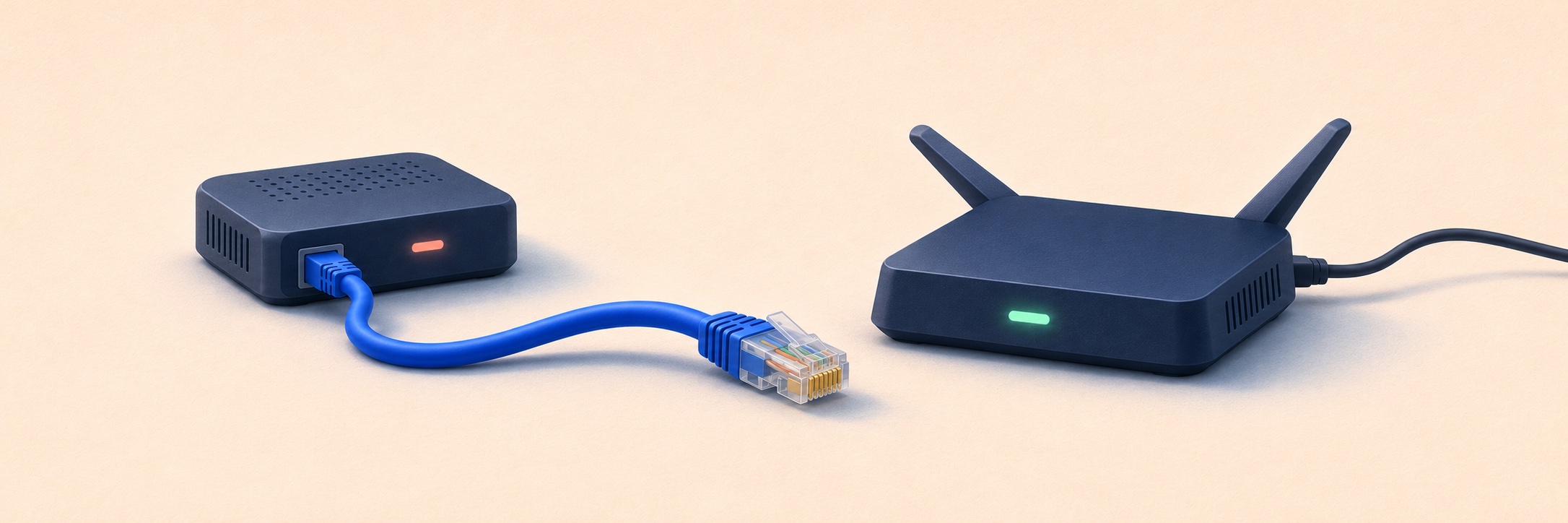
My home internet had been annoying me for a while. Some websites loaded fine; others just sat there. I plugged in an Ethernet cable, hoping for a more reliable connection. Windows promptly told me the network was unavailable.
After some troubleshooting, I found a strange workaround: connect to Wi-Fi first, then plug in Ethernet. Things seemed to work in that order. Apparently, getting online now involved a small ceremony.
The eventual fix was much less impressive: unplug one extra cable. An old ISP box was still on the LAN, using the same IP address as my router. Here’s how I finally caught it.
TL;DR
- Symptoms: some sites failed, wired IPv4 was unreachable, and connecting to Wi-Fi first seemed to help. Wired IPv6 still worked.
- Useful clue: both adapters listed
192.168.1.1as the gateway, but their neighbor entries pointed to different MAC addresses. - Root cause: my active ZTE router and an old optical network terminal (ONT) both used
192.168.1.1. Ethernet had learned the old ONT’s MAC; that box had no working IPv4 uplink. - Fix: disconnect the old ONT’s blue Ethernet cable, then let the wired neighbor entry refresh. The PC’s own cable stayed connected.
- Result: wired IPv4 recovered, Steam sign-in and the store worked again, and I could leave Wi-Fi off.
The setup
This was one home LAN, with a Windows PC connected over both Ethernet and Wi-Fi:
| PC interface | IPv4 address | Default gateway | Link |
|---|---|---|---|
| Ethernet | 192.168.1.6 | 192.168.1.1 | 1 Gbps |
| Wi-Fi | 192.168.1.7 | 192.168.1.1 | Weak signal, about 57.8 Mbps |
The active router was a ZTE F673AV9a. Clash Verge was also running, with the system proxy at 127.0.0.1:7897.
Steam added to the confusion: downloads could keep going over Ethernet while signing in or opening the store failed. Between that and the Wi-Fi-first workaround, I had plenty of ways to convince myself the wired connection was mostly fine.
Follow the packet
For an external IPv4 destination, the intended path was simple:
| |
The middle step matters. A route can name the correct gateway IP while the neighbor cache supplies the wrong device’s MAC address. ARP handles that IPv4-to-MAC lookup; it doesn’t check whether the device answering has a usable internet connection.
So there were two things to verify: could the wired connection carry traffic, and which device was receiving the IPv4 traffic meant for the gateway?
The evidence trail
These are the useful checks from the investigation, with PowerShell commands for repeating them. The tables summarize the findings rather than reproduce a full terminal log.
1. Check IPv4 separately from the Ethernet link
For a direct wired test, temporarily disconnect Wi-Fi and pause any VPN or TUN tunnel. Then check the adapter and try a numeric IPv4 destination:
| |
The Ethernet link was up at 1 Gbps, but the IPv4 probe returned Destination net unreachable. Comparing the available paths gave me this picture:
| Path | During the fault |
|---|---|
| Ethernet, IPv4 | Unreachable |
| Ethernet, IPv6 | Working |
| Wi-Fi, IPv4 | Working, but slow |
Working IPv6 made a completely dead adapter or disconnected cable a poor fit. The numeric IPv4 test also failed without needing a DNS lookup. That narrowed the search to the wired IPv4 path; the error alone didn’t yet explain why it was broken.
2. Check who owns the gateway address
Both interfaces had the expected gateway IP. The neighbor entries were where things stopped agreeing:
| |
During the fault, the recorded mappings were:
| Interface | Gateway IP | Cached MAC |
|---|---|---|
| Ethernet | 192.168.1.1 | f4:b5:aa:a4:04:98 |
| Wi-Fi | 192.168.1.1 | d0:59:19:bb:2b:12 |
arp -a can show this too. Keep the interface headings when reading it, or the important difference gets lost.
Different MACs gave me something concrete to investigate. I still needed to identify the devices behind them.
3. Identify the box at the other end
The gateway’s management page settled it. The working Wi-Fi path reached the ZTE router; the failing wired path reached the old ISP ONT.
To check the wired gateway directly, using my Ethernet address:
| |
Wi-Fi and any TUN tunnel should be out of the way for this check. --noproxy bypasses curl’s configured proxy; a system-wide tunnel needs to be paused separately.
Now the MAC addresses had names:
| Device | LAN IP | MAC | IPv4 internet access |
|---|---|---|---|
| ZTE router | 192.168.1.1 | d0:59:19:bb:2b:12 | Working |
| Old ONT | 192.168.1.1 | f4:b5:aa:a4:04:98 | No working uplink |
The old ONT was still attached to the LAN by a blue Ethernet cable. Both boxes claimed the gateway address, and the wired interface had cached the old box’s MAC.
That tied the failure to a specific path:
| |
I had the right gateway address and the wrong gateway device.
The fix: one less cable
I unplugged the blue cable connecting the old ONT to the LAN. The PC’s Ethernet cable stayed plugged in.
Once the wired neighbor entry refreshed, 192.168.1.1 resolved to the ZTE’s MAC, d0:59:19:bb:2b:12, and IPv4 started working.
Removing that one device changed both the gateway mapping and the failed connectivity test. That was a much better explanation than my Wi-Fi connection ritual.
Clear the old entry if it lingers
After removing the conflicting device, Windows may still have its old MAC cached. If needed, clear just that entry from an elevated PowerShell session:
| |
Then test again, with Wi-Fi disconnected:
| |
For my network, the expected MAC was D0-59-19-BB-2B-12. Use your own adapter name if it isn’t Ethernet.
The order matters: remove the duplicate first, then refresh the stale entry. Clearing the cache while both boxes remain connected leaves the conflict in place.
Why the symptoms were so misleading
IPv6 kept working over Ethernet because its path through the ZTE was separate from the broken IPv4 mapping. It uses Neighbor Discovery, rather than ARP.
That made Steam a particularly unhelpful health check. Downloads, sign-in, and store pages involve different connections. A successful download told me one connection worked. I let it reassure me about the whole adapter.
The healthy IPv6 path fits the symptoms, but I didn’t capture every Steam connection to establish which protocol each used. The direct IPv4 test was the firmer evidence.
Wi-Fi was misleading in a similar way. Its cached gateway mapping pointed to the ZTE at the time, so leaving it connected could hide the wired failure. I hadn’t captured the competing ARP messages, so I couldn’t prove exactly why connection order appeared to help. I could prove that it hadn’t repaired wired IPv4.
Clash Verge still needed a working outbound path too. A local proxy couldn’t get those IPv4 packets past the wrong gateway.
After the fix
With Wi-Fi disconnected, the original failures were gone:
| Check | Result |
|---|---|
| Wired gateway MAC | ZTE, d0:59:19:bb:2b:12 |
| Wired IPv4 | Working; recorded ping latency about 5 ms |
| Wired IPv6 | Still working |
| Steam sign-in and store | Working over Ethernet |
A short download comparison came out at 52.4 MB/s over Ethernet versus 4.1 MB/s over Wi-Fi. Both transfers used the same 16 MiB range from a USTC Ubuntu mirror, bound to their respective source IPs. It was a quick check, but it reminded me why I’d wanted Ethernet working in the first place.
Retrospective
My main mistake was accepting “some traffic works” as evidence that the wired connection was healthy. Steam could download, and the Wi-Fi-first routine got me online, so I kept giving Ethernet more credit than it deserved.
Checking the gateway IP was another half-finished job. 192.168.1.1 looked familiar, so I moved on. The MAC address and management page would have told me much more.
Next time, I’d take a shorter route through the problem:
- Test one adapter at a time, with IPv4 and IPv6 checked separately.
- Follow the failing path as far as the next hop, including its MAC and device identity.
- After a change, repeat the original failed checks with the working fallback disconnected.
If I reuse the old ONT, I’ll configure it in isolation first: give it a unique LAN address and check its DHCP settings before reconnecting it. Disabling DHCP alone wouldn’t remove its duplicate gateway address.
And I’ll look at the cables earlier. After all that troubleshooting, the fix was one unplug. Slightly embarrassing, very satisfying.
Command references: Get-NetNeighbor, Remove-NetNeighbor, and curl’s command-line reference.